I Turned My Old Windows PC Into My Own Google Photos Alternative
Why I built Backy to keep my family's original photos on a Windows PC, and what it takes to make that setup work.
Noam Shemesh ·

I wanted a straightforward answer to a question about my family's photos: where are the originals? The answer I wanted was a folder on a computer I own. I wanted to be able to open a photo or video there, copy it to another drive, or move the whole folder if I ever changed computers. I also wanted getting the files off an Android phone to feel less like a chore.
I already had a Windows PC. It could run an app, stay available on the network, and write files to disk. That was enough to build the setup I had in mind. I built Backy around that idea, with an Android app that sends photos and videos and a Windows app that receives them.
What I wanted for our family photos
For me, keeping originals locally is about knowing where the files live and having a practical way to get at them years later. A photo library is useful on a phone, but there are times when I want the actual file: to copy a video separately, to move a folder to another disk, or to check that something is backed up before I remove it from the phone.
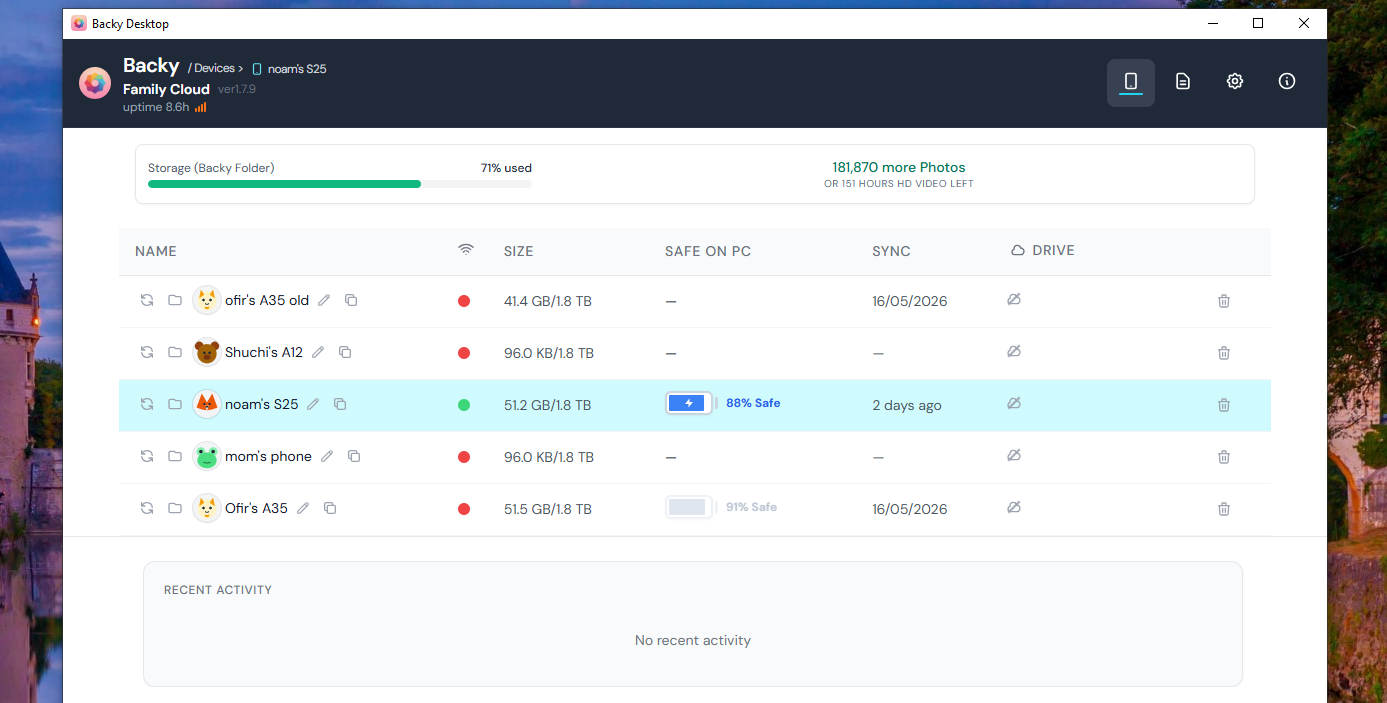
My daughter and I use Backy for our family photos. The part of that setup I care about most is that the PC is the destination for the backups. Backy can receive media from more than one Android device, with each device's backups stored in a separate folder. That lets a family share a computer for storage while keeping the files from each phone separate.
 View full-size Windows screenshot
What automatic backup means here
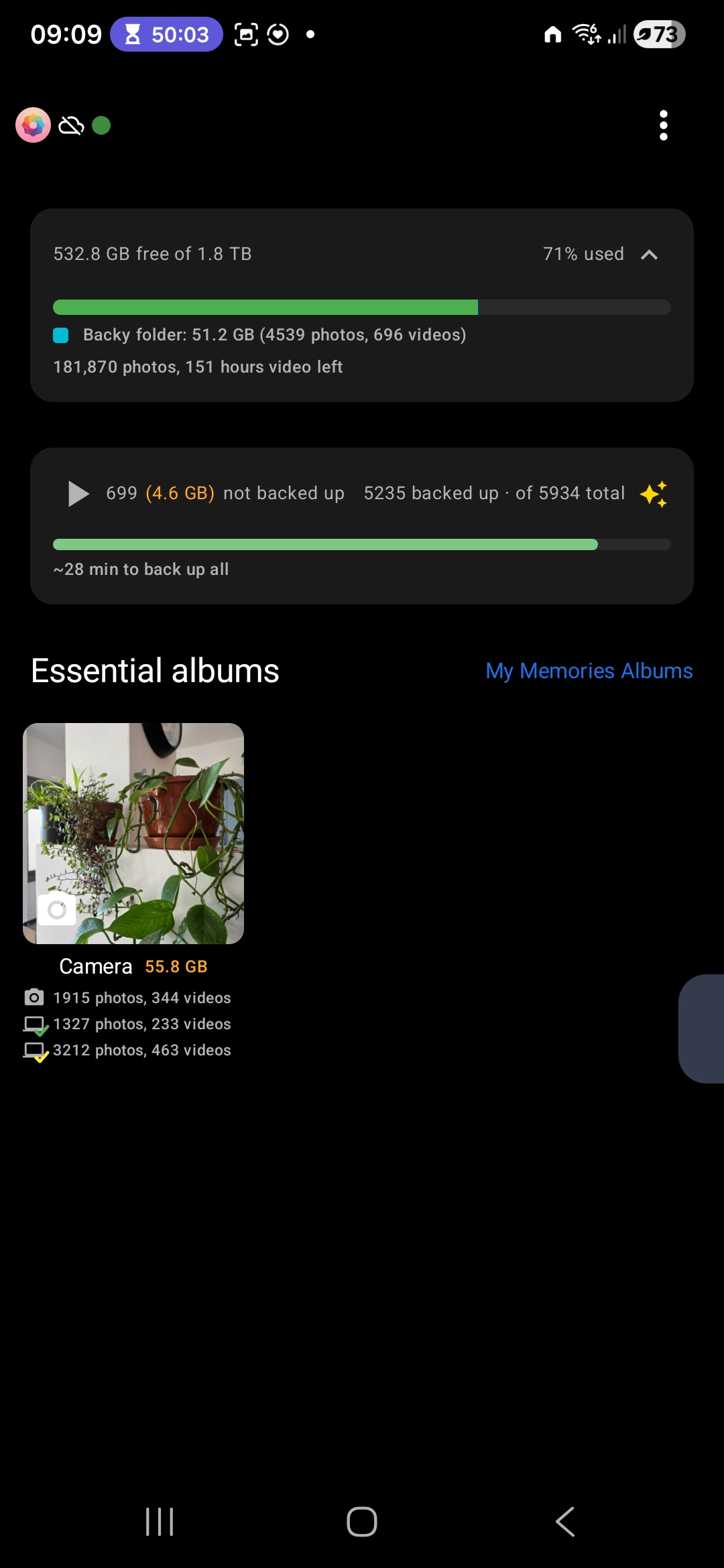
The first connection happens on the local network. I run Backy on the PC, open the Android app on the same network, connect the two, grant access to photos and videos, and start backup in the Android app.
The app looks for photos and videos in the phone's Camera Roll. While backup is enabled, it watches for new items and sends eligible files to the desktop when it can reach it. The desktop writes those files to the configured backup location. The automatic flow covers the Camera Roll. Screenshots, downloads, and media saved by other apps can live in different folders and are outside that automatic selection.
There's an important difference between turning on backup and having a verified copy. A phone can lose its connection, a PC can be asleep, and a drive can run out of space. Backy pauses when the desktop becomes unavailable and can resume when the Android app reconnects if I left backup enabled. Before removing an original from a phone, I'd check that its copy is present and opens on the PC.
 View full-size Android screenshot
Using the library away from home
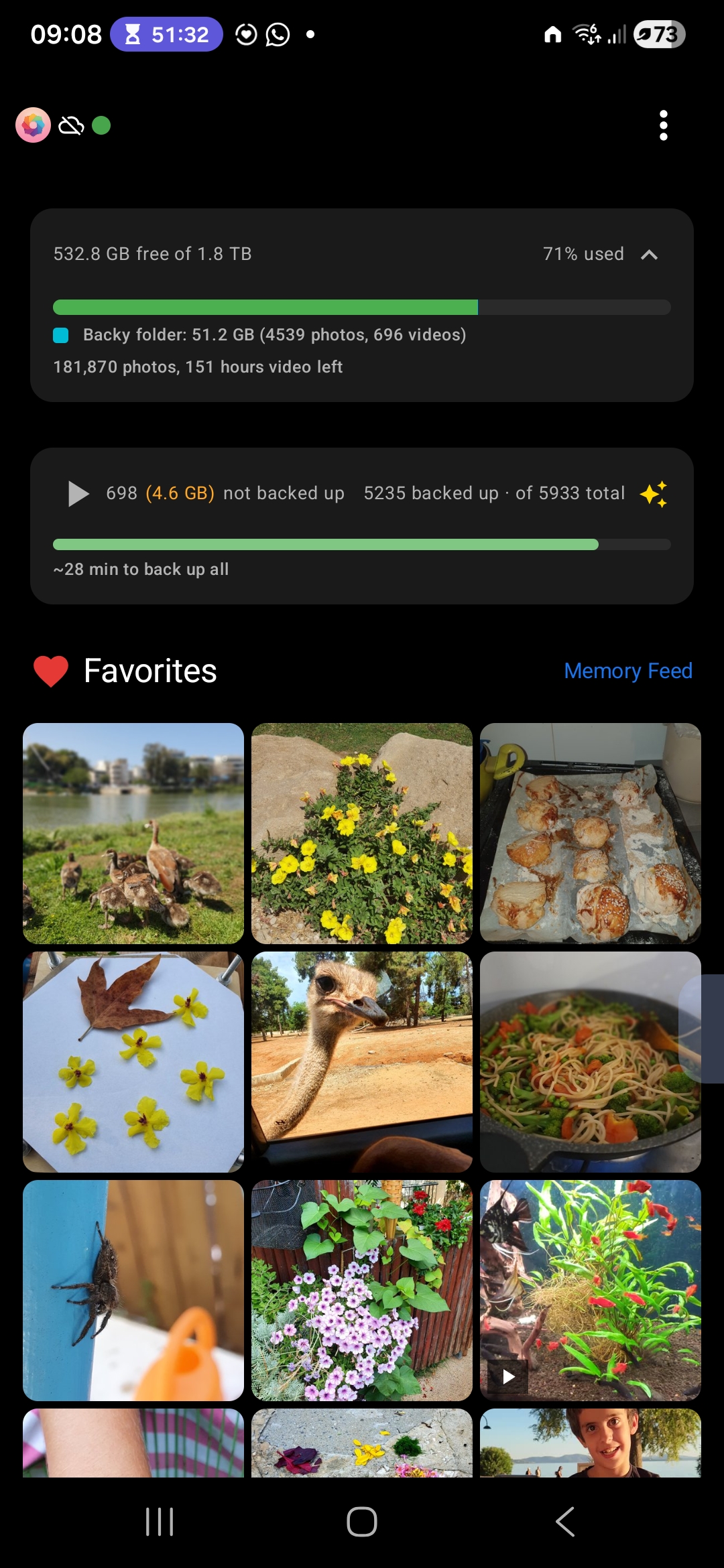
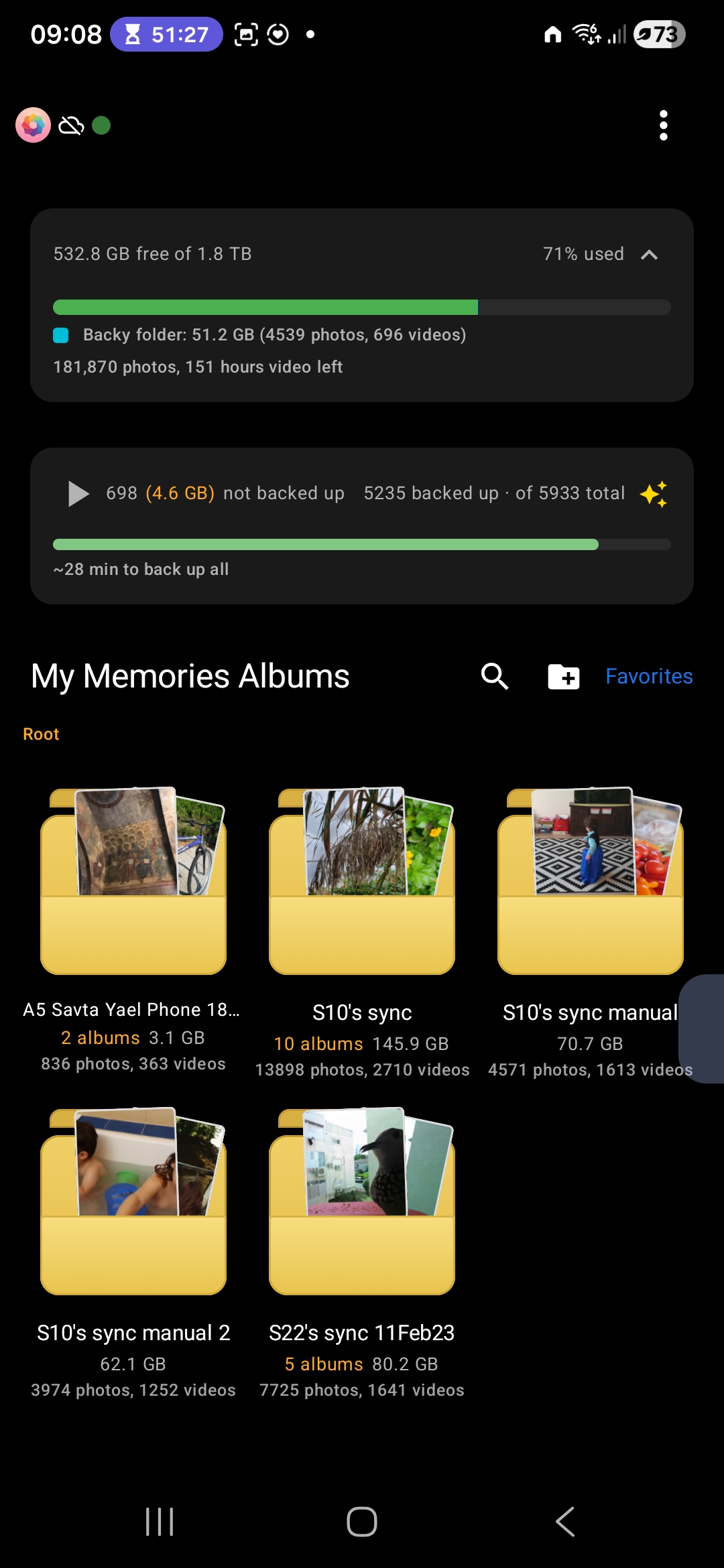
I also wanted to be able to get to the backed-up library from the Android app when I was away from my local network. Backy can connect remotely after the initial local pairing. When the desktop is running and reachable, the phone can browse media stored on it.
 View full-size Favorites screenshot
 View full-size My Memories Albums screenshot
Remote access still depends on the connection between the phone and the PC. Backy uses signaling to help establish that connection and can relay traffic when needed. The media files used for the backup remain on the PC. If the computer is turned off or cannot be reached, I can't count on opening something that is only stored there. That distinction matters when the home computer is the storage device.
Why I didn't need a dedicated NAS for this
A NAS is a reasonable choice when you need a dedicated machine for storage, especially if several people or services depend on it being available. My use case was narrower. I needed a place for Android Camera Roll backups, enough disk space, and a computer I could run when I wanted it to receive or serve files. An existing Windows PC could already do those jobs.
For this setup, I can run Backy directly on Windows without setting up Docker or a separate storage server. The capacity comes from the drive I choose for the backups. As the library grows, I have to pay attention to the available space and decide when to add or replace storage.
Using hardware I already own comes with some of the same responsibilities as running a NAS. I have to keep the machine available when I want remote access, and I need a separate copy if I want protection against a failed drive or the loss of the computer. A phone backup on one PC is one more copy. If I later remove the files from the phone, the copy on the PC may be the only one left.
What you need, and where I'd draw the line
Backy needs an Android phone running Android 7.0 or later, a Windows PC running the Backy desktop app, permission to read the phone's media, and free space in the desktop backup location. Both devices need to be on the same local network for the first pairing. Access from outside that network depends on the paired desktop being online and reachable.
I think of Backy as an alternative for one part of what people use Google Photos for: getting phone photos and videos backed up and having a way to browse those copies. The storage and availability decisions are mine. If I want a second copy on another drive, I have to make it. If I want to access the full library while away, the Windows PC has to be available.
That trade-off works for what I set out to build. My family's originals have a destination I can point to, and the transfer from the phone can happen in the background once I've started backup. The old PC has a job it was already capable of doing.